Limited Offer
Launch Sale: Save 25% on all plans with code LAUNCH25
--Hours
--Minutes
--Seconds

WordPress Image Accessibility: A Complete Guide to Alt Text That Works for Everyone

Why WordPress Image Accessibility Deserves More Attention Than It Gets
When most WordPress site owners think about accessibility, they picture a narrow checklist item that applies to enterprises and government websites. They assume it does not really affect a typical blog or small business site. That assumption is increasingly wrong, and it carries real consequences for both your audience and your search rankings.
According to the World Health Organization, approximately 2.2 billion people worldwide have some form of vision impairment. Screen reader usage is more widespread than most developers realize. Beyond users with disabilities, accessibility features benefit everyone: people using slow mobile connections, those browsing in bright outdoor light, users who have their device muted, and people who speak a different primary language from your site content. Building an accessible WordPress site is not a niche concern. It is a baseline quality standard.
Images are the single largest accessibility gap on most WordPress sites. A post with five images and no alt text is partially inaccessible by default. A WooCommerce store with three hundred product images and empty alt attributes has a significant accessibility problem. This guide breaks down exactly what WordPress image accessibility requires, what the most common mistakes look like, and how to fix an entire image library without spending weeks on manual work.
What WCAG Actually Requires for Images
The Web Content Accessibility Guidelines (WCAG) are the internationally recognized standard for web accessibility. WCAG 2.1 (and now WCAG 2.2) are referenced by accessibility laws in the United States, European Union, United Kingdom, Canada, and Australia. If your site fails to meet WCAG 2.1 Level AA, it may fall short of legal requirements in your jurisdiction.
The specific requirement that covers images is Success Criterion 1.1.1: Non-text Content (Level A). The rule is straightforward: all non-text content that is presented to the user has a text alternative that serves the equivalent purpose. In plain terms, every image that carries meaning must have alt text that conveys that same meaning to someone who cannot see the image.
WCAG distinguishes between several types of images, and the requirement differs slightly for each:
- Informative images: Images that visually represent concepts, information, or actions. These need descriptive alt text that conveys the content or function of the image.
- Decorative images: Images that are purely visual and add no information to the content. These should use an empty alt attribute (alt=””) so screen readers skip them.
- Functional images: Images used as links or buttons. The alt text should describe the destination or function, not the image itself.
- Images of text: Images that display readable text. The alt text should match the text shown in the image.
- Complex images: Graphs, charts, diagrams, and infographics. These require a short alt text plus a longer description elsewhere on the page.
Most WordPress sites deal primarily with informative images: photos in blog posts, product images in WooCommerce, screenshots in tutorials, and header images in pages. For all of these, descriptive alt text is required.
The Legal Landscape: Who Is Actually At Risk
Web accessibility lawsuits have been rising steadily for the past decade. In the United States, the Americans with Disabilities Act (ADA) has been applied to websites by federal courts. The Department of Justice issued updated guidance in 2024 confirming that ADA Title II applies to state and local government websites, and Title III has been interpreted to cover commercial websites.
In the European Union, the European Accessibility Act (EAA) took effect in June 2025, requiring that digital products and services sold in the EU meet accessibility standards. This includes e-commerce sites that sell to European customers, regardless of where the business is based.
Small and medium-sized businesses are not immune. Many accessibility lawsuits are filed against companies with modest revenues. The cost of a lawsuit or settlement often far exceeds the cost of fixing the accessibility issues in the first place. Missing alt text is consistently one of the most cited issues in automated accessibility audits and legal filings.
That said, legal compliance is not the most compelling reason to fix your image accessibility. The most compelling reason is that it simply makes your site better for every visitor. But if legal risk is the nudge you need to get started, consider it noted.
Common WordPress Image Accessibility Mistakes
Here are the patterns that show up most often in WordPress site audits:
Missing Alt Text Entirely
This is the most common and the most straightforward to fix. Hundreds or thousands of images uploaded over years of publishing, with no alt attribute or an empty one added by accident. Tools like Screaming Frog, Ahrefs, or a Lighthouse audit will flag these immediately.
Keyword-Stuffed Alt Text
Some site owners do add alt text, but use it purely as a keyword field: “cheap flights London cheap airfare best deals London flights.” This is worse than no alt text in some respects because it creates a confusing, low-quality experience for screen reader users and can be flagged as keyword stuffing by Google.
Filename-Based Alt Text
WordPress automatically uses the filename as the title of an uploaded image. Some themes and plugins pull this title into the alt attribute if none is specified. The result is alt text that reads “DSC_001234_edited_final_v2” or “screenshot-2024-11-03-at-14.22.13,” which provides no meaningful information.
Redundant Alt Text
Placing the same description in both the alt text and the surrounding caption creates a repetitive experience for screen reader users, who hear the same information twice. Alt text should be complementary to surrounding text, not identical to it.
Decorative Images With Descriptive Alt Text
The opposite problem: adding detailed descriptions to purely decorative images (background textures, divider lines, abstract shapes) that add no informational value. Screen reader users end up sitting through descriptions of content that does not matter to them. Decorative images should use alt=”” to signal that screen readers should skip them.
What Good Alt Text Actually Looks Like
Writing good alt text is a skill, but it follows a few clear principles. Here is a comparison that illustrates the difference between common approaches:
- No alt text: Screen reader announces “image” with no description. User learns nothing.
- Filename: “pexels-photo-6248947.jpeg.” User learns nothing useful.
- Generic: “A photo.” Slightly better, still useless.
- Keyword-stuffed: “WordPress accessibility WordPress alt text WordPress image SEO.” Confusing and unhelpful.
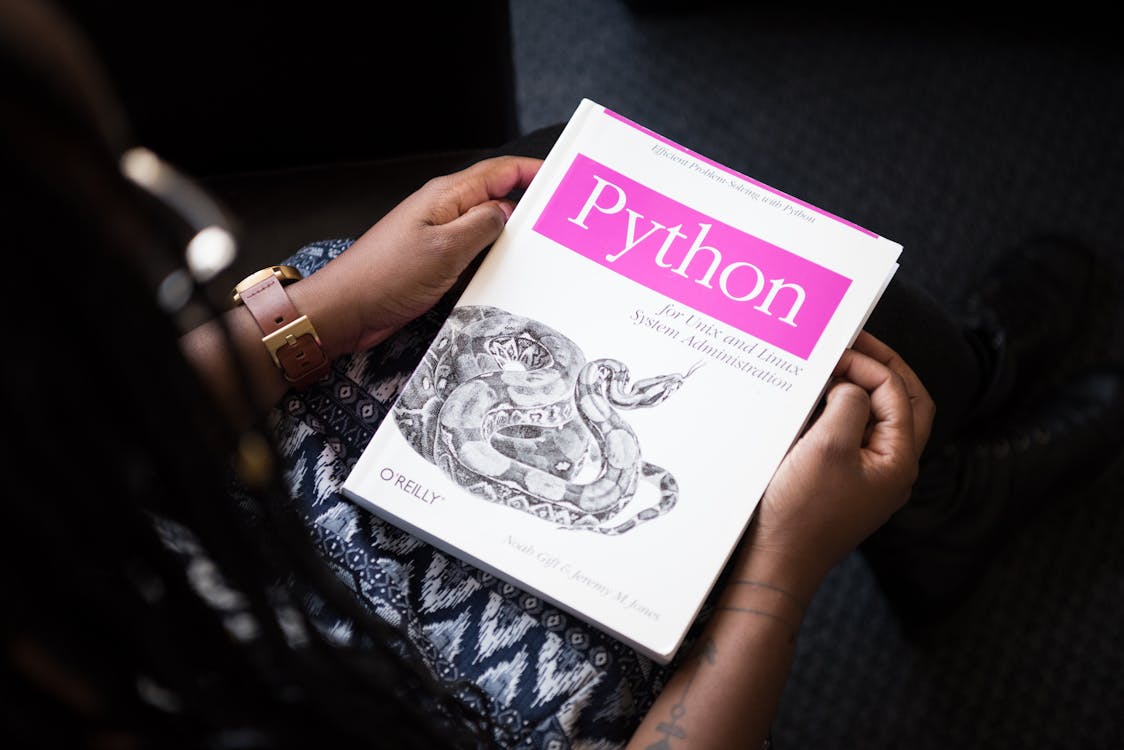
- Good: “Person reviewing a WordPress website on a laptop to check image accessibility.” Descriptive, accurate, conversational.
The target length is under 125 characters. Screen readers often truncate at that point, so a description that runs to 200 characters may get cut off mid-sentence. Keeping descriptions concise and front-loaded with the most important information is the practical approach.
For product images in WooCommerce, a good format is:
+ [key visual attribute] + [relevant context]. For example: “Blue ceramic coffee mug with white handle on a wooden table.” This gives both the product detail and the visual context that would help someone make a purchasing decision.

Auditing Your WordPress Site for Image Accessibility
Before you can fix the problem, you need to know the scope. Here are the tools and methods to get a clear picture of your current image accessibility status:
WordPress Media Library
Switch the Media Library to List view (the bullet-point icon in the top right of the Media Library page). This shows a table of all your uploaded media with columns including title, author, and date. Unfortunately, WordPress’s default list view does not show alt text status at a glance. You can click individual attachments to check, but that is impractical at scale.
Lighthouse in Chrome DevTools
Open any page on your site, open Chrome DevTools (F12 or right-click, Inspect), go to the Lighthouse tab, and run an Accessibility audit. Lighthouse will flag images that are missing alt text on the page and give you an accessibility score. The limitation is that this checks one page at a time, not your entire media library.
Screaming Frog SEO Spider
The free version of Screaming Frog can crawl up to 500 URLs. Under the Images tab, you can filter for images with missing or empty alt text. This is a more complete view of what is actually appearing on your published pages, though it does not catch media library items that are not used anywhere.
Built-In Alt Score Tracking
A more elegant solution is a plugin that adds alt text tracking directly to the Media Library. AI Alt Text Builder adds a colour-coded Alt Score column to the Media Library list view. Each image shows a score from 0 to 100 based on whether it has alt text and how long that alt text is (the optimal target is under 125 characters, which scores 100). You can see at a glance which images are fully optimized, which have too-long descriptions, and which have no alt text at all.
Combined with a dropdown filter that lets you show only “Without Alt Text” images, this turns what would be a manual audit into a one-step process.
Fixing Alt Text at Scale With AI
Here is where the practical challenge lies: most WordPress sites do not have ten images missing alt text. They have hundreds or thousands. A blog that has been publishing for five years with two to five images per post, at two posts per week, easily has over a thousand images in the Media Library. Writing descriptive alt text for all of those manually is not realistic for a one- or two-person team.
AI-powered alt text generation solves this problem directly. Modern vision AI can analyze an image and produce a descriptive, character-appropriate alt attribute in under two seconds. At scale, that means fixing 500 images in the time it would take to write alt text for five manually.
AI Alt Text Builder implements this directly in the WordPress admin. The bulk generation workflow works like this:
- Go to Media, Library and switch to List view.
- Use the “Alt Text Status” dropdown to filter for images without alt text.
- Select the images you want to process (individually or all at once).
- Open Bulk Actions and choose “Generate with AI Alt Text Builder.”
- Watch a live progress indicator show processed, successful, and failed counts in real time.
- Review the resulting Alt Scores in the column once the batch completes.
The plugin processes images in batches of 6 per cycle to avoid server timeouts, and you can cancel at any point if needed. For most sites, a full library cleanup runs in one session.
Model Options and Token Costs
AI Alt Text Builder uses RankPilotAI’s API (no separate OpenAI account or API key is needed). You get a choice of three GPT models with different cost-to-quality trade-offs:
- GPT-4.1-mini (Economical): 1 token per image. Fast and efficient for large libraries where volume matters more than premium accuracy.
- GPT-4.1 (Balanced): 3 tokens per image. A solid middle ground that works well for most content types.
- GPT-4o (Premium): 5 tokens per image. Best for high-stakes content like product imagery, portfolio photography, or medical and educational imagery where precision matters.
The token-based model means you pay for what you use and can choose the quality level appropriate for each project. A news site with thousands of photojournalism images might use GPT-4.1-mini for the bulk of them, then switch to GPT-4o for a featured gallery that deserves more detailed descriptions.
Custom Prompts for Brand-Specific Descriptions
One feature that makes AI Alt Text Builder particularly useful for businesses with specific content requirements is the custom prompt field. You can give the AI additional instructions that shape every generated alt text across your library:
- An e-commerce store selling fashion might add: “Always mention the color, material, and garment type. Focus on the product, not the model.”
- A real estate site might use: “Describe the room type, notable features, and condition. Mention natural light if visible.”
- A food and recipe blog might specify: “Mention the dish name, key ingredients visible in the image, and presentation style.”
- A B2B software site might write: “Describe the interface or diagram clearly and professionally. Use technical vocabulary where appropriate.”
Without custom prompts, the AI produces accurate generic descriptions. With custom prompts, it produces descriptions that fit your content strategy, your audience, and your brand voice. That consistency is difficult to achieve with manual writing at scale.
Multi-Language Accessibility
If your WordPress site serves audiences in multiple languages, your alt text should match. Describing an image in English on a French-language page is an accessibility failure for French-speaking screen reader users. AI Alt Text Builder supports alt text generation in English, German, French, Spanish, Turkish, and custom locales.
You configure the language in the plugin settings, and every subsequent generation uses that language by default. For multilingual sites using WPML or Polylang, this means you can run separate bulk passes for each language version of your site and get native-language alt text for each one.

Pricing: What AI Alt Text Generation Actually Costs
AI Alt Text Builder is available on WordPress.org with a free tier and several paid plans:
- Free: 25 lifetime tokens. Good for testing the plugin and generating alt text for a small sample of images before upgrading.
- Starter ($2.99/month, billed yearly): 100 tokens per month. Access to GPT-4.1-mini and GPT-4.1.
- Creator ($7.99/month, billed yearly): 400 tokens per month. Access to all three models.
- Expert ($17.99/month, billed yearly): 1,200 tokens per month. Access to all three models.
At 1 token per image using GPT-4.1-mini, the Starter plan covers 100 images per month for $2.99. That is about 3 cents per image description, which is far cheaper than hiring an assistant or factoring your own time. For a site needing a one-time bulk cleanup of 2,000 images, the Expert plan for one or two months handles the entire project and can be downgraded afterward.
Compare that to the alternative: a virtual assistant charging $15 to $25 per hour writing roughly 20 to 30 alt texts per hour is spending 30 to 50 cents per image description. AI is roughly ten times cheaper at the GPT-4.1-mini tier and still five to six times cheaper at the GPT-4o tier.
Setting Up AI Alt Text Builder: A Quick Start
The installation and setup take about five minutes:
- Install the plugin from WordPress.org (search “AI Alt Text Builder” in the plugin directory, or upload the zip via Plugins, Add New, Upload).
- Activate it and navigate to Settings, AI Alt Text Builder.
- Paste your RankPilotAI Site Key (obtained from your RankPilotAI account at rankpilotai.com) and click Save Settings.
- Optionally configure your preferred model, language, and custom prompt instructions.
- Go to Media, Library and switch to List view to see the Alt Score column.
- Filter for images without alt text and run your first bulk generation.
After the initial bulk pass, the ongoing workflow is simple: whenever you upload new images, click the “Generate with AI” button in the media attachment editor before publishing. One click, two seconds, and your image has compliant, descriptive alt text ready to go.
Beyond Compliance: The SEO Case for Image Accessibility
Accessibility and SEO are deeply intertwined when it comes to images. Google uses alt text as a primary signal for understanding image content. Images without alt text contribute little to your organic search presence. Images with accurate, descriptive alt text are eligible to appear in Google Image Search, which drives meaningful traffic for many sites, particularly those with product photography, infographics, or editorial images.
A technical SEO audit on most WordPress sites will flag missing alt text as a high-priority issue. Tools like Semrush’s Site Audit, Ahrefs’ Site Audit, and Screaming Frog all surface it prominently. Addressing it improves your audit score, which is a useful signal for clients and stakeholders.
Core Web Vitals are not directly affected by alt text, but Lighthouse Accessibility scores are. A site that scores 65 on accessibility because of missing alt text looks worse in performance reports than a site that scores 95. Since Google has incorporated page experience signals into ranking factors, improving Lighthouse accessibility scores is a legitimate part of a broader SEO strategy.
Conclusion: Accessibility Is a Fixable Problem
WordPress image accessibility is one of those problems that gets worse the longer you ignore it. Every post you publish with untagged images adds to the backlog. Every WooCommerce product you add without alt text is another missed accessibility checkpoint and another image that Google cannot fully index.
The good news is that this particular problem is entirely fixable, and it does not require a complete site rebuild or a large investment of time. With an AI-powered bulk generation tool, a media library that took years to accumulate can be brought up to WCAG compliance in a single session.
If you are ready to address image accessibility on your WordPress site, start with AI Alt Text Builder. The free tier gives you 25 tokens to see exactly how the bulk generation works on your own images before committing to a paid plan. Install it, run the filter for images without alt text, and see how many you are dealing with. From there, the path forward is straightforward.
Good alt text takes two seconds to generate with AI. It benefits every visitor who uses a screen reader, every user on a slow connection where images do not load, and every Google crawler that indexes your content. That is a lot of return on a very small investment of time and budget.